
 0918006093
 Tin tức
 Khuyến mãi
 IPHONE
 IPAD
IPAD


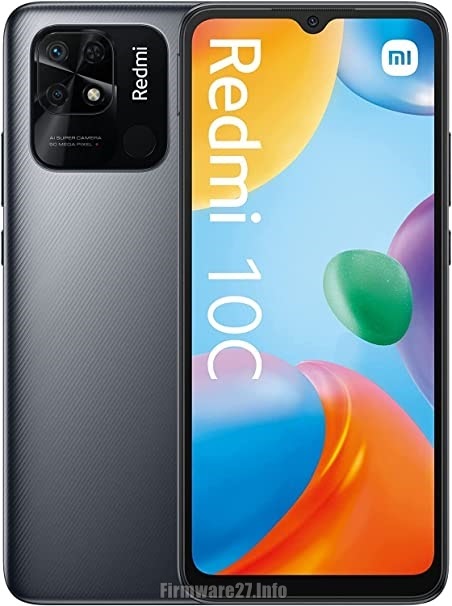
Tải về Redmi 10C (Fog) Stock ROM (Flash File) ngay bây giờ
Th8
Bạn có thể tải xuống Stock ROM (Flash File) Redmi 10C (Fog) tại đây.
Xiaomi Redmi 10C (Fog) là một phiên bản Xiaomi Miui Rom chính thức sử dụng để sửa chữa thiết bị của bạn nếu bạn gặp phải hiện tượng bootloop, lỗi hệ thống, Unbrick dead sau khi flash, khóa màn hình, khóa mẫu, đặt lại Mi Cloud, FRP / Google Account, treo và các vấn đề về thiết bị đã chết. Bạn có thể flash firmware rom bằng cách sử dụng công cụ miflash hoặc ứng dụng Updater.
Đối với bản Recovery ROM của Xiaomi Redmi 10C (Fog), bạn có thể tải về các phiên bản sau:
– MIUI V13.0.5.0.SGEMIXM, Android 12, khu vực toàn cầu, dung lượng 2.9 GB: [Download](https://bigota.d.miui.com/V13.0.5.0.SGEMIXM/miui_FOGGlobal_V13.0.5.0.SGEMIXM_b24fadf4ba_12.0.zip)
– MIUI V13.0.4.0.SGEEUXM, Android 12, khu vực EEA, dung lượng 2.9 GB: [Download](https://bigota.d.miui.com/V13.0.4.0.SGEEUXM/miui_FOGEEAGlobal_V13.0.4.0.SGEEUXM_be9940cff9_12.0.zip)
– MIUI V13.0.2.0.SGEIDXM, Android 12, khu vực Indonesia, dung lượng 2.8 GB: [Download](https://bigota.d.miui.com/V13.0.2.0.SGEIDXM/miui_FOGIDGlobal_V13.0.2.0.SGEIDXM_24ddc31af8_12.0.zip)
– MIUI V13.0.3.0.SGEINXM, Android 12, khu vực Ấn Độ, dung lượng 2.8 GB: [Download](https://bigota.d.miui.com/V13.0.3.0.SGEINXM/miui_FOGINGlobal_V13.0.3.0.SGEINXM_0c28f58cec_12.0.zip)
Đối với bản Fastboot ROM của Xiaomi Redmi 10C (Fog), bạn có thể tải về các phiên bản sau:
– MIUI V13.0.5.0.SGEMIXM, Android 12, khu vực toàn cầu, dung lượng 5.7 GB: [Download](https://bigota.d.miui.com/V13.0.5.0.SGEMIXM/fog_global_images_V13.0.5.0.SGEMIXM_20230111.0000.00_12.0_global_60b0cb3d1d.tgz)
– MIUI V13.0.4.0.SGEEUXM, Android 12, khu vực EEA, dung lượng 5.5 GB: [Download](https://bigota.d.miui.com/V13.0.4.0.SGEEUXM/fog_eea_global_images_V13.0.4.0.SGEEUXM_20230206.0000.00_12.0_eea_5e56956d3d.tgz)
– MIUI V13.0.2.0.SGEIDXM, Android 12, khu vực Indonesia, dung lượng 5.2 GB: [Download](https://bigota.d.miui.com/V13.0.2.0.SGEIDXM/fog_id_global_images_V13.0.2.0.SGEIDXM_20221107.0000.00_12.0_global_d30e58a626.tgz)
– MIUI V13.0.3.0.SGEINXM, Android 12, khu vực Ấn Độ, dung lượng 4.1 GB: [Download](https://bigota.d.miui.com/V13.0.3.0.SGEINXM/fog_in_global_images_V13.0.3.0.SGEINXM_20230116.0000.00_12.0_in_497055103f.tgz)
Để nạp firmware rom Xiaomi Redmi 10C (Fog) thông qua ứng dụng Updater, bạn có thể thực hiện các bước sau:
1. Tải về bản recovery rom và sao chép vào thư mục “downloaded_rom” trên điện thoại của bạn.
2. Mở “Cài đặt” trên điện thoại của bạn.
3. Chọn “Về điện thoại”.
4. Nhấp vào “Cập nhật hệ thống”, sau đó nhấp vào biểu tượng “ba chấm” ở góc trên bên phải màn hình điện thoại của bạn.
5. Chọn “chọn gói cập nhật”.
6. Từ trình quản lý tập tin, chọn tệp zip Recovery ROM mà bạn đã tải xuống và sao chép vào thư mục “downloaded_rom”.
7. Khi bạn đã tải xuống tệp ROM, thiết bị của bạn sẽ bắt đầu nâng cấp.
8. Thiết bị của bạn sẽ tự động khởi động vào phiên bản mới khi quá trình cập nhật hoàn thành.
9. Hoàn thành!
Để nạp firmware rom Xiaomi Redmi 10C (Fog) thông qua công cụ MiFlash, bạn có thể thực hiện các bước sau:
1. Tải về công cụ Xiaomi MiFlash và giải nén trên máy tính.
2. Giải nén tệp rom fastboot mà bạn đã tải về. Nếu phần mở rộng tệp firmware đã tải xuống là “.gz”, hãy đổi tên thành “.tgz”.
3. Tắt điện thoại của bạn.
4. Bấm và giữ nút Âm lượng giảm và Nguồn cùng một lúc để khởi động vào chế độ Fastboot.
5. Khi đã ở chế độ fastboot, kết nối thiết bị với máy tính thông qua cáp USB.
6. Chạy công cụ MiFlash.exe và nhấp vào “refresh” để đảm bảo điện thoại của bạn kết nối chính xác với máy tính.
7. Dán đường dẫn thư mục firmware vào ô sau nút “select” trong công cụ MiFlash.
8. Sau khi bạn đã xác nhận mọi thứ đã chuẩn bị sẵn sàng và bạn đã tuân thủ các bước cẩn thận – nhấn nút “flash”. Hãy chắc chọn “clean all” trước khi flash.
9. Hãy kiên nhẫn chờ đợi và không ngắt kết nối điện thoại của bạn với máy tính cho đến khi thanh tiến trình flash trở thành màu xanh lá cây và hiển thị thông báo “success”.
10. Hoàn thành!
Lưu ý: Chúng tô
Xiaomi Redmi 10C (Fog) Official Miui Rom for repairing your device if you have experienced bootloop, System errors, Unbrick dead after flash, Screen Lock, Pattern Lock, Reset Mi Cloud, FRP / Google Account, hanging and dead problems. Flash firmware rom using miflash tool or updater app.

Xiaomi Redmi 10C (Fog) Recovery ROM
| MIUI | Android | Region | Size | Link |
|---|---|---|---|---|
| V13.0.5.0.SGEMIXM | 12 | Global | 2.9 GB | Download |
| V13.0.4.0.SGEEUXM | 12 | EEA | 2.9 GB | Download |
| V13.0.2.0.SGEIDXM | 12 | Indonesia | 2.8 GB | Download |
| V13.0.3.0.SGEINXM | 12 | India | 2.8 GB | Download |
Xiaomi Redmi 10C (Fog) Fastboot ROM
| MIUI | Android | Region | Size | Link |
|---|---|---|---|---|
| V13.0.5.0.SGEMIXM | 12 | Global | 5.7 GB | Download |
| V13.0.4.0.SGEEUXM | 12 | EEA | 5.5 GB | Download |
| V13.0.2.0.SGEIDXM | 12 | Indonesia | 5.2 GB | Download |
| V13.0.3.0.SGEINXM | 12 | India | 4.1 GB | Download |
How To Flash Xiaomi Redmi 10C (Fog) Updater App
- Download the recovery rom,and copy to /sdcard/downloaded_rom folder on your phone
- Launch Settings on your phone
- Select About phone
- Click System update then click the three dots icon at the top-right corner of your phone screen
- Select choose update package
- From the file manager, choose the Recovery ROM zip file that you’ve already downloaded and copied to downloaded_rom folder
- Once you have downloaded the ROM file, your device will start upgrading.
- Your device should automatically boot to the new version when the update is completed.
- Done
How To Flash Xiaomi Redmi 10C (Fog) Via MiFlash Tool
- Download Xiaomi MiFlash tool and extract to the computer
- Extract fastboot rom you have already downloaded. If the downloaded firmware file extension is “.gz“, rename it to “.tgz“.
- Turn off your phone.
- Now press Volume down and Power button at the same time to boot Fastboot mode.
- Once in fastboot mode, connect the device to Computer via USB cable
- Launch MiFlash.exe tool and click refresh to make sure your phone connects correctly to the computer
- Paste the firmware folder path in the box after “select” button in MiFlash tool
- Once you have confirmed that everything is in order, and you have followed the steps carefully- click the flash button. Ensure that clean all is selected before you flash.
- Wait patiently and do not disconnect your phone from the Computer until the flashing progress bar turns green and indicate a success message
- Done
Disclaimer:
Don’t forget backup all data and files on your phone before flashing or installing the stock rom. As this helps you to recover the personal data whenever any thing wrong happens. All the risks we are not responsible.