
 0918006093
 Tin tức
 Khuyến mãi
 IPHONE
 IPAD
IPAD


Làm thế nào để có trình duyệt web giống Safari trên Apple Watch
Th12
Cách sử dụng Trình duyệt Web giống Safari trên Apple Watch
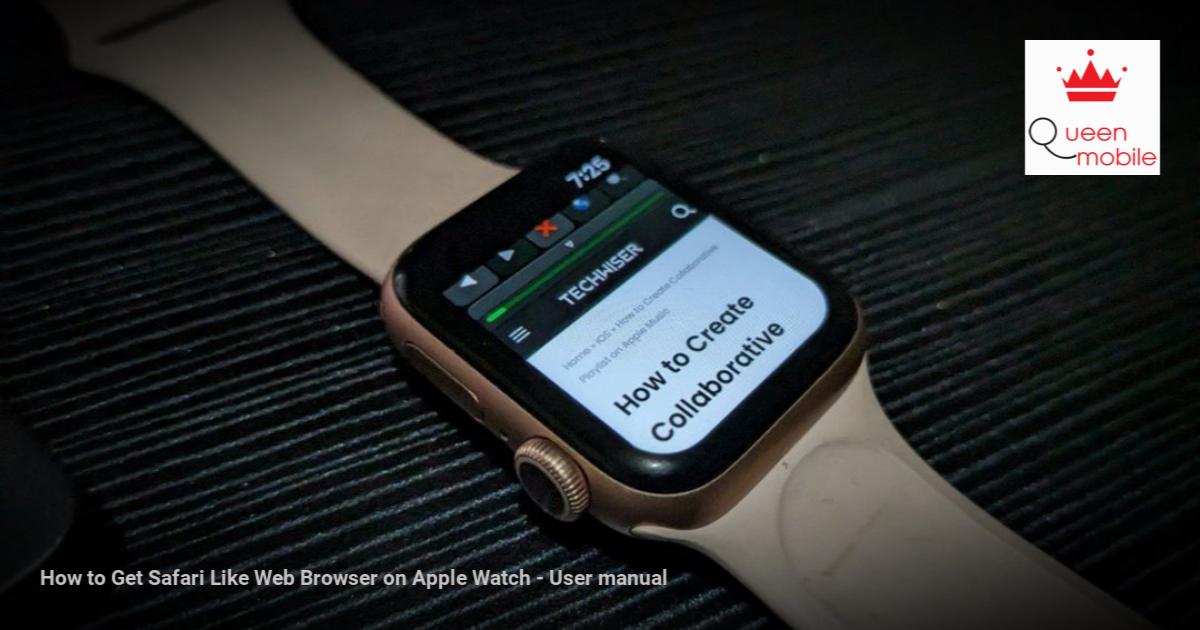
Muốn duyệt web trên Apple Watch nhưng không tìm thấy Safari trong danh sách ứng dụng? Bạn không phải một mình. Apple Watch không bao gồm trình duyệt web Safari mà bạn có thể sử dụng tự do. Vậy nên giải pháp là gì? Tất cả những gì bạn cần là có một ứng dụng trình duyệt web giống Safari của bên thứ ba trên Apple Watch của bạn. Rất hữu ích khi bạn không mang theo iPhone như khi bạn đang chạy bộ, ở trong phòng tập gym hoặc trong bể bơi.
Bạn cần sử dụng một ứng dụng có tên là Parrity. Đó là một trình duyệt web có thể sử dụng trên cả iPhone và Apple Watch. Đầu tiên, hãy cài đặt ứng dụng Parrity trên iPhone của bạn từ App Store.
Sau khi cài đặt, mở ứng dụng Watch trên iPhone của bạn. Cuộn xuống phần ứng dụng và chạm vào nút Cài đặt bên cạnh ứng dụng Parrity. Ứng dụng sẽ được cài đặt trên Apple Watch của bạn.
Bây giờ, hãy mở trình duyệt web Parrity trên Apple Watch của bạn (nó sẽ nằm trong danh sách ứng dụng) và bạn sẵn sàng khám phá thế giới internet trên Apple Watch của bạn. Chạm vào biểu tượng Globe trong ứng dụng để mở thanh địa chỉ. Sau đó, chạm vào thanh địa chỉ.
Bạn sẽ có các tùy chọn để nhập URL trang web. Bạn có thể nhập nó bằng cách nói chuyện hoặc chế độ viết tay. Tùy chọn thứ ba là sử dụng iPhone để nhập văn bản. Nhấn vào nút Go. Khi một trang web mở ra, sử dụng Digital Crown hoặc vuốt lên và xuống để di chuyển trên trang web.
Dĩ nhiên, vì không gian màn hình khá nhỏ, trải nghiệm không tốt như trên iPhone hoặc máy tính xách tay. Tuy nhiên, ứng dụng hoạt động tốt và có thể hữu ích khi bạn muốn duyệt web trên Apple Watch của bạn.
Tip: Kiểm tra các trò chơi Apple Watch tốt nhất.
Bạn cũng có thể sử dụng những cách làm sau để duyệt web trên Apple Watch của bạn:
Gửi liên kết bạn muốn mở trên Apple Watch qua ứng dụng Tin nhắn hoặc ứng dụng Mail để có sẵn trên Apple Watch của bạn. Sau đó, bấm vào liên kết và nó sẽ mở trong trình duyệt ẩn trên Apple Watch của bạn. Nhưng đừng phấn khích vì bạn không thể nhập liên kết bằng tay vào trình duyệt ẩn của Apple Watch của bạn.
Sử dụng Siri để mở các trang web phổ biến như Google, Facebook, Amazon, vv. Kích hoạt Siri và sau đó nói tên trang web. Khi kết quả web xuất hiện, cuộn xuống và chạm vào Mở trang web.
Trước khi bạn đi, hãy biết cách để đưa nhiều hình ảnh lên Apple Watch.
#AppleWatch #TrìnhDuyệtWeb #Safari #Parrity #DuyệtWebTrênAppleWatch #NgườiMáyCủaApple #CôngNghệ
3
Want to browse the internet on your Apple Watch but can’t find Safari in the list of apps? You aren’t alone. Apple Watch doesn’t include a Safari web browser that you can use freely. So what’s the solution? All you need to do is get a third-party Safari-like web browser app on your Apple Watch. Useful when you don’t have an iPhone on you like when you are on a run, in the gym, or in the pool.
You need to take the help of an app known as Parrity. It’s a web browser that can be used on iPhone and Apple Watch both. First, install the Parrity app on your iPhone from the App Store.
Once installed, open the Watch app on your iPhone. Scroll down to the apps section and tap on the Install button next to the Parrity app. The app will be installed on your Apple Watch.

Now, open the Parrity web browser on your Apple Watch (it should be in the list of apps) and you are ready to explore the world of the internet on your Apple Watch. Tap on the Globe icon in the app to open the address bar. Then, tap on the address bar.

You will get options to enter the website URLs. You can enter it using voice typing or handwriting mode. The third option is to use your iPhone to type the text. Hit the Go button. Once a webpage opens, use the Digital Crown or swipe up and down to navigate around the webpage.

Of course, since the screen space is quite small, the experience isn’t as great as one would have on an iPhone or a laptop. Nevertheless, the app works great and can come in handy when you want to browse something on your Apple Watch.
Tip: Check out the best Apple Watch games.
You can also use the following workarounds to browse the internet on your Apple Watch:
- Send the link you want to open on your Apple Watch via the Messages or the Mail app to make it available on your Apple Watch. Then, click on the link and it should open in the hidden browser on your Apple Watch. Don’t get excited because you cannot manually enter links in the hidden browser of your Apple Watch.
- Use Siri to open popular sites like Google, Facebook, Amazon, etc. Activate Siri and then say the website name. Once the web results show up, scroll down and tap on Open web page.
Before you go, know how to put multiple pictures on Apple Watch.
[ad_2]
